Categories
Create different categories as events and plan your next event easily.
About categories
Categories are used to group collectibles together. This allows you to create "events" for your players to participate in. You can even run multiple categories at the same time.
To further customize your categories, you can set a start and end date for the category. This will allow you to create a countdown for your players to join the event. After the date has passed, the category will be disabled and the collectibles will be locked, not allowing players to collect them anymore. Collected items will be saved and be displayed in the Scavenger Journal even after the category has ended. Not unlocked collectibles will still be hidden from the journal.
Creating categories
Categories can be created in the GUI by opening the GUI and clicking on the "Create Category" button.
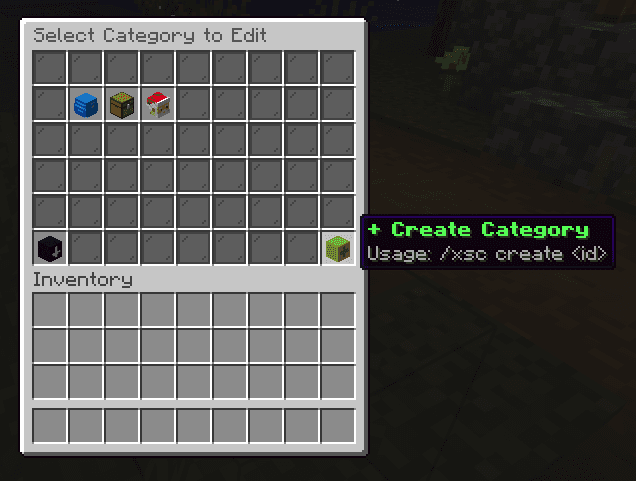
You need to fill in the name of the category. This name will also be used as the category ID to reference files and collectibles. Changing the name after creating the category will not change the ID, so you don't have to worry about changing it later.
Customizing categories
You can customize the category by clicking on the category. A new window will pop up with the following options:
- Name
- Description (lore)
- Reward file (optional, recommended to not change)
- Event Timer
- GUI appearance (material/head)
- Sensory clues
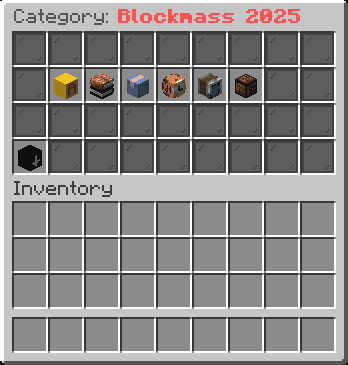
Click on any of the options to edit them.
Name and description
Name and description can also be written in hex colors and gradients.
Colors are available in these formats:
&a&lChristmas Event 2025(Minecraft color codes){#ff0000}Christmas Event 2025(Hex colors){#ff0000}Christmas Event 2025{/#0000ff}(Gradients)
Reward file
The reward file is the file that will be used to reward players for completing the category. You can also use the same reward file for multiple categories, but it's recommended to not change it.
This file is located in the plugins/Xenoscavenger/rewards folder and accessible via the rewards GUI menu or by file editor.
Event Timer
You can set a start and end date for the category. This will allow you to create a countdown for your players they can watch to see how much time is left until the category starts or ends.
GUI appearance
In GUI Appearance menu, you can set the material or head that will be used as a icon for the category and journal, as well as the locked collectibles appearance. Material can be any block, item, or head. Simply drag and drop the material or head onto the slot to set it.
You can also set a custom material using the file editor. There, you need to specify if the appearance is "MATERIAL", "HEAD", or "TEXTURE". For custom heads or textures, we recommend to use Minecraft Heads.
Format the appearance in file editor like this:
MATERIAL:COBBLESTONE(Block or item available in the game)HEAD:notch(Head of any player)TEXTURE:eyJ0ZXh0dXJlcyI6eyJTS0lOIjp7InVybCI6Imh0dHA6Ly90...(Any custom texture from Minecraft Heads)
If you want to change what description collectibles have when they are locked, you can do so here as well.
Sensory clues
Tip for troubleshooting
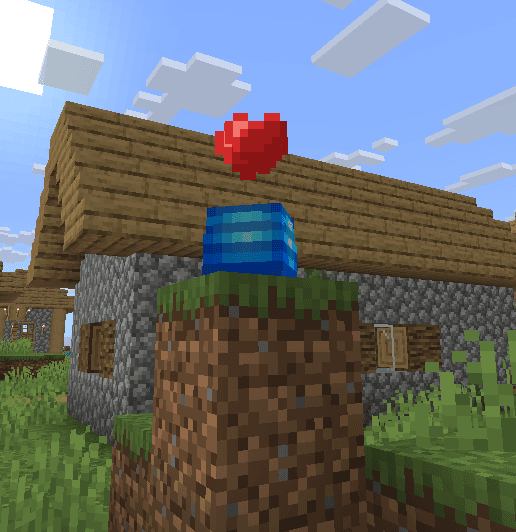
Sensory clues are a way to give your players a hint about where the collectible is located near the player. Clue can play a sound and also emit particles around the collectible.
This clue will be played for every collectible in the category. However, collectibles can have their own settings for the clue, completely overriding the category settings.
Here's an example if you use HEART as the particle effect:
Placeholders
Use plugin's placeholders in other plugins or within the plugin's config files.
Collectibles
Set blocks as collectibles to be found by players and claim them for rewards.
Last updated on